Enable video sound and YouTube captionsUpdated 6 hours ago
Overview
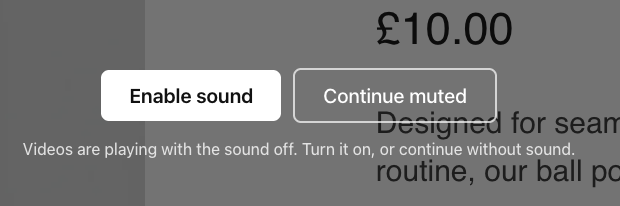
This feature allows you to enable audio playback for your video playlists and display closed captions for any YouTube videos you feature. Because modern web browsers block videos from autoplaying with sound, this feature provides a seamless clickable prompt on your synced displays, allowing you to bypass browser restrictions and deliver a fully immersive, accessible multimedia experience to your customers.
Key Benefits:
Enhance engagement: Capture your customers' attention by pairing your promotional videos with their intended audio.
Improve accessibility: Make your content easier to consume in noisy environments or for hearing-impaired customers by enabling YouTube captions.
Browser compliant: Automatically handles strict browser autoplay policies by providing a clean, user-friendly permission prompt.
Prerequisites:
Ensure the videos you wish to use are ready to be added to a playlist.
If you plan to use captions, ensure your videos are hosted on YouTube.
Step-by-Step Instructions:
Open the Broadcast app from your Shopify Admin.
Navigate to the Playlists tab.
Create a new playlist and add your chosen videos.
Click Save to create your playlist.
Scroll to Video settings and toggle on Allow sound and/or Show YouTube captions.
Click Save to apply your changes to the playlist.
NOTE
Browsers automatically block sound when a video autoplays. With Allow sound enabled, a prompt will appear on your synched display asking the viewer to enable audio. Clicking this button satisfies the browser's permission requirements.
INFO
Once the prompt is clicked, audio will play continuously, even as your playlist loops. However, if the browser is refreshed, the viewer will need to click the prompt again to re-enable the sound.
TIP
Captions are disabled by default. When toggled on, they will only be displayed for YouTube videos included in your playlist.
Expected Outcome
When your playlist starts on a synced display, a prompt will appear asking to enable sound. Once clicked, all videos in the playlist will play with audio. If you enabled captions, they will successfully display on any YouTube videos within that playlist.